

Using MyWorkDrive for AWS FSx Remote File Access
Organizations adopt Amazon FSx for Windows File Server to get a fully managed Windows file system in AWS, but accessing FSx file systems and shared resources remotely in a secure, user-friendly way is still a challenge. Traditional approaches rely on VPN clients, RDP sessions, or complex VDI setups that expand the attack surface and frustrate users.
This article shows how to use MyWorkDrive as a secure HTTPS gateway in front of Amazon FSx and S3-compatible storage to deliver fast, compliant AWS SFx remote file access without VPNs, syncing, or data migration.
What Is AWS FSx Remote File Access?
Amazon FSx for Windows File Server is a fully managed Microsoft Windows file system in AWS that provides SMB-based shared file storage with native support for Active Directory, quotas, snapshots, and encryption. The Amazon FSx file system is managed and monitored through the Amazon FSx console and the AWS management console, where administrators can view statuses, perform administrative actions, and manage resources that have been created. It’s designed so applications and users can access a Windows-native file system from compute instances in your VPC.
By default, “remote file access” to FSx usually means:
-
Connecting to your VPC with AWS Client VPN and then mounting FSx SMB shares (file shares) from your device using the smb protocol and referencing the DNS name of the Amazon FSx file system.
-
Exposing a full virtual desktop or RDP session that runs inside the VPC.
-
Using AWS Site-to-Site VPN or AWS Direct Connect from on-prem networks to the VPC, then mapping FSx as if it were a LAN file server.
These patterns work, but they have drawbacks:
-
Users must install and maintain VPN or RDP clients.
-
Network-level access increases lateral movement risk.
-
SMB ports remain exposed inside the VPC, complicating security controls.
-
There is no built-in DLP, browser-based access, or mobile-first experience.
-
These approaches can complicate the process of creating and managing file shares.
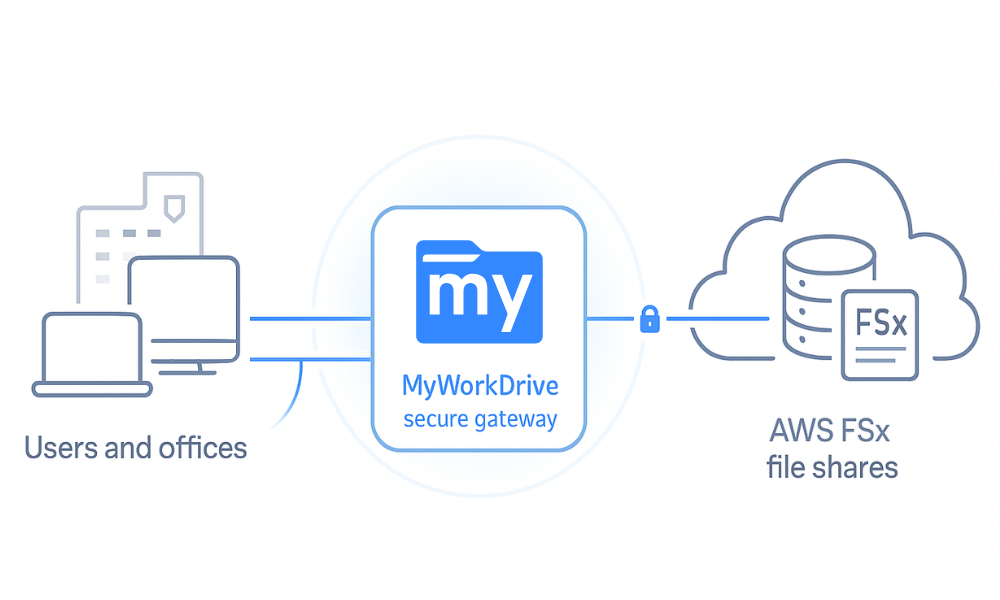
MyWorkDrive secure remote file access changes the model: instead of giving users network access to your VPC, it provides application-level AWS FSx remote file access over HTTPS 443 only, enabling access to Amazon FSx file shares without exposing the smb protocol to the internet.
How MyWorkDrive Simplifies Remote Access to AWS FSx
MyWorkDrive is a secure remote file access solution that runs on Windows Server and integrates with Active Directory or Entra ID. It exposes SMB-based file shares via web browser, mapped drive client, and mobile apps over HTTPS, without syncing or migrating data to a third-party cloud.
When placed in front of FSx:
-
No VPN required – Users connect via HTTPS only (port 443) to the MyWorkDrive server; SMB never leaves your private network.
-
Preserves NTFS and AD controls – MyWorkDrive honors existing NTFS ACLs, ABE, and group membership on FSx shares.
-
Multiple access methods – Browser, virtual mapped drive, and mobile apps all point to the same FSx-backed shares.
-
Built-in security controls – View-only mode, watermarks, download blocking, device approval, and detailed audit logs are enforced at the gateway.
-
Unified storage gateway – The same MyWorkDrive instance can serve FSx, on-prem SMB shares, Azure Files/Blob, and S3-compatible storage as a single private cloud file server.
The result is an AWS FSx remote file access architecture that is simpler for users and safer for security teams.
Architecture: MyWorkDrive with AWS FSx and S3-Compatible Storage
Core Components
A typical deployment includes:
-
Amazon FSx for Windows File Server as the primary SMB file system. It provides Windows-native quotas, snapshots, encryption, and AD integration for lift-and-shift workloads.
-
(Optional) S3-compatible object storage (for example, Amazon S3 plus providers listed in MyWorkDrive’s S3 storage guide) surfaced through MyWorkDrive as file-style repositories.
-
MyWorkDrive server (EC2 in AWS or on-premises VM) joined to the same Active Directory used by FSx, as described in the MyWorkDrive server setup guide.
-
Identity provider – AWS Managed Microsoft AD or self-managed AD, optionally federated with Entra ID for SSO, MFA, and Conditional Access.
Clients connect over HTTPS to MyWorkDrive; MyWorkDrive connects to FSx over SMB inside the VPC.
Network Topologies and VPC Design
Common patterns:
-
All-in AWS – MyWorkDrive runs on EC2 in the same VPC and, ideally, the same Availability Zone as FSx, minimizing latency and cross-AZ data transfer.
-
Hybrid – MyWorkDrive runs on-premises and reaches FSx over AWS Direct Connect or AWS Site-to-Site VPN.
-
Multi-site – Multiple MyWorkDrive servers (on-prem and in AWS) front a mix of local SMB shares, FSx, and S3-compatible storage for region-specific access.
Security groups are configured so:
-
SMB (TCP 445) is open only between MyWorkDrive and FSx.
-
Domain and DNS ports are permitted between MyWorkDrive and AD.
-
Only HTTPS 443 is exposed from MyWorkDrive to the internet or upstream reverse proxies.
Active Directory and Entra ID Integration
FSx is joined to an AD domain—either AWS Managed Microsoft AD or a self-managed directory. MyWorkDrive joins the same domain and uses Kerberos/NTLM to access FSx on behalf of users, enforcing NTFS permissions and ABE.
You can:
-
Authenticate users directly against AD.
-
Federate AD with Entra ID and enable SAML/OIDC-based SSO with MFA and Conditional Access policies.
-
Use AD groups to drive both FSx NTFS ACLs and MyWorkDrive share publishing rules.
Step-by-Step: Deploying MyWorkDrive for AWS FSx Remote File Access
Step 1 – Prepare AWS FSx and Active Directory
-
Create or identify an FSx file system in your target region and VPC using the FSx console.
-
Join FSx to your directory (AWS Managed Microsoft AD or self-managed AD) using the FSx setup wizard.
-
Create SMB shares and NTFS permissions for home directories, department shares, and project folders.
-
Enable features such as quotas, backups, and file access auditing as outlined in the FSx features documentation.
Step 2 – Deploy the MyWorkDrive Server (EC2 or On-Prem)
-
Launch MyWorkDrive as an EC2 instance from the MyWorkDrive Cloud File Sharing Server listing on AWS Marketplace or install it on a Windows Server VM.
-
Join the MyWorkDrive server to the same AD domain as FSx.
-
Place it in a subnet that can reach FSx and AD; assign a security group permitting SMB to FSx and necessary AD/DNS ports.
-
Expose HTTPS 443 to the internet directly, via an Application Load Balancer, or behind an existing reverse proxy/WAF.
For a detailed walkthrough, see the MyWorkDrive server setup guide.
Step 3 – Connect MyWorkDrive to AWS FSx File Shares
-
In the MyWorkDrive admin console, add new shares using the FSx UNC paths (for example, \fs-0123456789abcdef.domain.local\DeptShare).
-
Map each share to appropriate AD groups, ensuring consistency with your existing NTFS ACLs.
-
Validate access as a test user via the web client, confirming that ABE hides unauthorized folders.
This is the same pattern you would use when publishing on-prem SMB file shares with MyWorkDrive secure file sharing. (MyWorkDrive)
Step 4 – Publish Remote Access (Web, Mapped Drive, Mobile)
-
Enable the web file manager so users can access FSx shares via any modern browser over HTTPS, as described on the secure remote file access page.
-
Deploy the MyWorkDrive mapped drive client to Windows and macOS endpoints so users can map FSx shares as if they were local network drives—even when off the corporate network.
-
Optionally enable mobile access (iOS/Android) for users who need quick access to FSx documents from smartphones and tablets.
-
Configure Office Online or OnlyOffice integration so users can edit FSx-hosted Office documents directly in the browser.
Step 5 – Pilot, Harden, and Roll Out
-
Start with a small pilot group (for example, IT plus one business unit) and a subset of FSx shares.
-
Enable DLP features such as view-only mode, watermarks, and download blocking for sensitive folders.
-
Turn on device approval for mapped drive clients if you want to restrict which endpoints can connect.
-
Integrate MyWorkDrive logs with your SIEM and monitor Amazon CloudWatch metrics for FSx throughput, latency, and capacity.
-
Expand to additional groups and shares once performance and policies are validated.
Integrating S3-Compatible Storage Behind MyWorkDrive
When to Use FSx vs S3-Compatible Storage
-
Use FSx for active, transactional file workloads that depend on SMB semantics: Office documents, home directories, engineering projects, and line-of-business shares.
-
Use S3-compatible storage for cold data archives, logs, backup exports, and large media that benefit from object storage economics, as described in the S3 storage as a mapped drive article.
MyWorkDrive can present both types side by side, providing a unified remote file access experience without forcing users to learn object storage tools.
Mapping S3-Compatible Buckets as Repositories
In MyWorkDrive:
-
Configure the S3-compatible endpoint, access key, and secret key as outlined in the S3 storage configuration guide.
-
Map specific buckets or prefixes as read/write or read-mostly repositories.
-
Align IAM/bucket policies with MyWorkDrive share rules to prevent privilege escalation.
Users then browse these S3-backed repositories just like folders, with the same DLP and audit capabilities applied.
User Experience Across FSx and S3
From the user’s perspective:
-
FSx-backed and S3-backed locations appear as folders within the same MyWorkDrive portal.
-
The same web, mapped drive, and mobile clients work across both storage types.
-
Policies (view-only, watermarking, sharing restrictions) behave consistently, regardless of whether the underlying data lives on FSx or S3-compatible storage.
Key Use Cases for MyWorkDrive and AWS FSx
VPN-Free Remote Workforce Access
MyWorkDrive provides AWS FSx remote file access without requiring a full-tunnel VPN. Users connect via HTTPS to MyWorkDrive, authenticate with AD or Entra ID, and access FSx shares through a browser or mapped drive as if they were on the office network.
Benefits:
-
No VPN clients to deploy or support.
-
No SMB ports exposed to the internet.
-
Reduced risk of lateral movement inside the VPC.
For a broader overview of this model, see the secure remote file access without VPNs landing page.
Hybrid On-Premises and AWS FSx Environments
Many enterprises operate a mix of on-prem Windows file servers and FSx file systems. MyWorkDrive can:
-
Publish on-prem SMB shares and FSx shares from a single URL, effectively acting as a cloud file sharing gateway.
-
Enable phased migrations from on-prem to FSx without changing user workflows.
-
Maintain consistent DLP and audit policies across both environments.
The cloud file storage for Windows article discusses this hybrid pattern in more depth.
External and Partner Collaboration
Instead of provisioning VPN access or managing separate SFTP servers:
-
Publish specific FSx-based folders through MyWorkDrive for partners and vendors.
-
Use Entra B2B guest accounts or other identity federation for external identities.
-
Apply view-only, watermarking, and expiry-based sharing policies to limit data leakage.
Security, Zero Trust, and Compliance
Application-Level Security for FSx and S3
In a MyWorkDrive deployment:
-
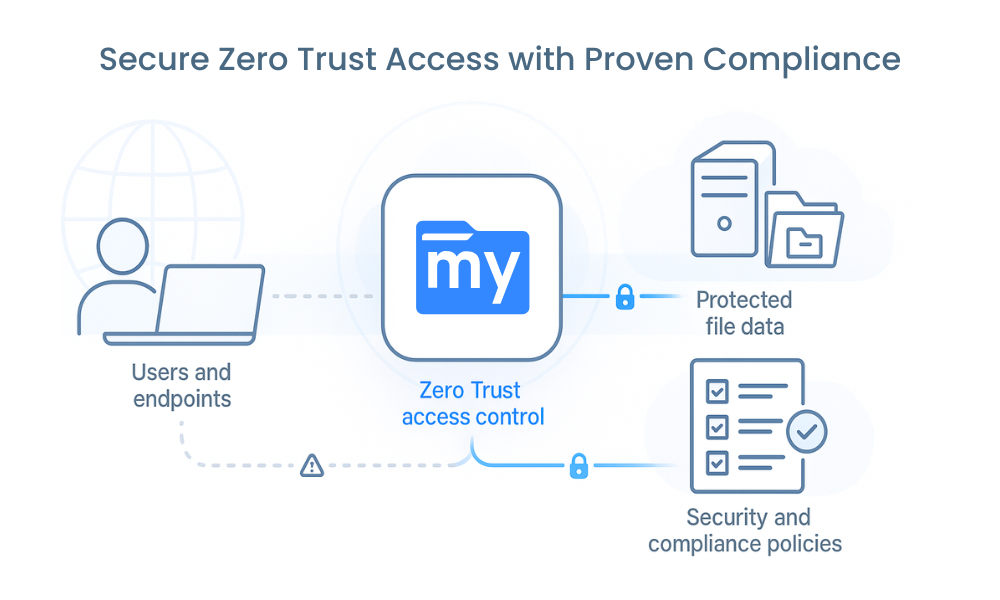
External access is constrained to HTTPS 443 on the MyWorkDrive server; SMB, RDP, and other management ports stay inside the private network.
-
Traffic between clients and MyWorkDrive is encrypted with TLS 1.2/1.3; traffic between MyWorkDrive and FSx/S3 remains inside AWS or private links.
-
Access is evaluated at the application layer (user identity, group membership, policies) before any file operation is passed to FSx or S3.
Data Loss Prevention and Device Controls
MyWorkDrive adds controls that native FSx access does not provide:
-
View-only mode with server-side rendering to prevent downloads.
-
Dynamic watermarks displaying username, IP, and timestamp.
-
Download and print blocking for sensitive shares.
-
Device approval and session controls for the mapped drive client.
These features complement FSx’s native security (NTFS, AD integration, encryption) with user-centric protection.
Meeting Regulatory and Data Residency Requirements
Because data remains in your FSx file systems and S3 buckets, you retain full control over:
-
Region selection and data residency.
-
Backup, retention, and snapshot policies.
-
Logging and integration with SIEM platforms for compliance evidence.
MyWorkDrive’s audit logs, DLP controls, and identity integration can be used as part of architectures designed to meet frameworks such as HIPAA, GDPR, and CMMC (alongside proper policies, processes, and AWS-native controls).
Performance and Optimization for Remote Users
Latency and Placement of MyWorkDrive vs FSx
For best performance:
-
Place MyWorkDrive in the same region and VPC as FSx, and ideally in the same AZ for latency-sensitive workloads.
-
When MyWorkDrive is on-prem, use AWS Direct Connect or high-quality VPN links and reserve this pattern for cases where an on-prem control plane is mandatory.
End-user performance is then dominated by internet latency between users and MyWorkDrive, not between MyWorkDrive and FSx.
FSx Configuration Tuning
Tune FSx for your expected MyWorkDrive workloads:
-
Select SSD vs HDD storage based on I/O patterns.
-
Size throughput capacity and IOPS according to concurrent user counts and file sizes.
-
Use user quotas and deduplication to control capacity growth.
Optimizing Client Experience
Match access method to workload:
-
Web client – Ideal for light document viewing, quick edits, and secure access from unmanaged devices, as highlighted on the secure remote access page.
-
Mapped drive – Best for knowledge workers who work with many files, large documents, or integrated desktop apps.
-
Mobile – For quick lookups, approvals, and simple edits while away from a workstation.
Deployment Patterns and Best Practices
All-in AWS Deployment
-
MyWorkDrive EC2 instances in an Auto Scaling group behind an Application Load Balancer.
-
FSx in the same region/AZ; optionally S3 buckets in the same region.
-
Traffic enters via ALB → MyWorkDrive → FSx/S3; logging flows to CloudWatch, CloudTrail, and your SIEM.
The Private Cloud File Server for Windows on AWS page describes this pattern as a way to run your own cloud file server with FSx as backend storage.
Hybrid Enterprise Deployment
-
MyWorkDrive on-prem, publishing local SMB shares and FSx shares via Direct Connect/VPN.
-
Offers a single URL for users, regardless of where data resides.
-
Good fit when you’re gradually migrating on-prem file servers to FSx while using MyWorkDrive cloud file storage as the access layer.
Regional Isolation and DR
-
Separate MyWorkDrive clusters per region, each fronting local FSx and S3 resources to satisfy data sovereignty requirements.
-
Use FSx backups and S3 replication/versioning for disaster recovery.
Migration Strategies for AWS FSx and MyWorkDrive
Migrating to AWS FSx and MyWorkDrive requires a thoughtful approach to ensure a smooth transition of your file system, file shares, and existing file data. One of the most efficient ways to move data from on-premises storage to AWS FSx is by leveraging AWS DataSync. This fully managed service streamlines the transfer of files and folders, ensuring data integrity and security throughout the migration process. For organizations looking to maintain their existing file shares and access controls, MyWorkDrive can be used to manage shares without disrupting user workflows or permissions.
When planning your migration, it’s important to evaluate your deployment type, whether you need a single-AZ or multi-AZ file system for high availability and disaster recovery. Assess your storage capacity requirements to ensure your FSx environment can accommodate current and future data growth. Proper Microsoft Active Directory integration is also essential, as it allows you to manage user access and permissions seamlessly across your new file system. By carefully considering these factors, organizations can migrate their data, folders, and access controls to AWS FSx and MyWorkDrive with minimal disruption, while maintaining compliance and operational efficiency.
Cost Optimization for AWS FSx Remote File Access
Cost optimization for AWS FSx remote file access starts with understanding your file system usage and aligning resources with actual needs. AWS Cost Explorer is a valuable tool for monitoring usage patterns and identifying opportunities to reduce expenses. By analyzing how users access files and folders, you can make informed decisions about storage type—choosing between SSD for high performance workloads or HDD for cost-effective storage of less frequently accessed data.
Adjusting the throughput capacity and storage capacity of your FSx file system is another effective way to control costs. For example, scaling throughput to match peak demand and reducing it during off-peak hours can help optimize spending.
Additionally, using MyWorkDrive as your secure file access gateway can further reduce costs by minimizing the need for on-premises storage infrastructure and associated maintenance. By regularly reviewing your file access patterns and storage requirements, you can ensure that your FSx deployment remains both high-performing and cost-efficient.
Comparison with Other Remote File Access Solutions
AWS FSx combined with MyWorkDrive delivers a robust, fully managed remote file access solution that stands out from other offerings in several key areas. The seamless integration with Microsoft Active Directory enables organizations to leverage existing user accounts, group policies, and access controls for file shares and folders, ensuring a familiar and secure experience for users. Unlike many alternative solutions, AWS FSx provides high availability and durability for files, reducing the risk of data loss and ensuring continuous access.
Other remote file access solutions may lack the deep integration with Active Directory or require additional configuration to achieve similar levels of security and compliance. With AWS FSx and MyWorkDrive, users benefit from a unified platform that simplifies file access, management, and auditing, all while reducing the administrative overhead of managing on-premises storage. When evaluating remote file access options, it’s important to consider not only security and scalability, but also how well the solution integrates with your existing infrastructure, applications, and compliance requirements.
Monitoring, Logging, and Troubleshooting
Common Issues with AWS FSx Remote File Access
Typical issues include:
-
Authentication failures caused by AD integration problems or clock skew.
-
“Access denied” errors due to mismatched NTFS ACLs and MyWorkDrive share settings.
-
Slow performance because FSx throughput is undersized or MyWorkDrive is placed in a distant AZ/region.
Observability Across MyWorkDrive, FSx, and S3
Best practices:
-
Enable detailed MyWorkDrive logging and forward logs to a SIEM, as covered in the server setup guide.
-
Use Amazon CloudWatch to monitor FSx metrics (throughput, IOPS, free storage).
-
Use CloudTrail and S3 access logs for object-level visibility when using S3-compatible storage.
Operational Runbooks and Proactive Monitoring
Create runbooks for:
-
Diagnosing login failures (AD/Entra ID, certificates, time sync).
-
Handling performance complaints (checking FSx metrics, MyWorkDrive CPU/RAM, network paths).
-
Responding to security alerts (revoking device access, forcing re-auth, adjusting DLP settings).
Set alerts on key indicators such as FSx throughput saturation, low free space, MyWorkDrive CPU usage, and elevated error rates.
Summary and Next Steps
Amazon FSx for Windows File Server delivers a fully managed, highly available Windows file system in AWS, but native options for remote end-user access often require VPNs, RDP, or complex networking.
MyWorkDrive provides a simpler, more secure model for AWS FSx remote file access:
-
HTTPS-only, application-layer gateway instead of network-layer VPN.
-
Unified access to FSx, S3-compatible storage, and on-prem SMB shares.
-
Preservation of NTFS and AD controls, enriched with DLP, device approval, and centralized auditing.
If you’re planning or operating FSx today, a practical next step is to:
-
Stand up a MyWorkDrive instance in AWS using the AWS Marketplace listing.
-
Connect a single FSx share and a small pilot group.
-
Validate performance, security, and user satisfaction—then expand to additional shares, S3 repositories, and regions using the patterns covered in the MyWorkDrive cloud file sharing and cloud file storage guides.
AWS FSx Remote File Access FAQs
Can I use AWS FSx for remote file access without a VPN?
Yes. While FSx is commonly accessed from AWS or on-prem instances over Direct Connect or Site-to-Site VPN, you can provide secure AWS FSx remote file access without a traditional VPN by placing MyWorkDrive in front of FSx. MyWorkDrive exposes FSx shares over HTTPS 443 only, so users reach their FSx-based file shares through a browser, mapped drive client, or mobile app without opening SMB ports or deploying full-tunnel VPN clients.
How does MyWorkDrive provide secure AWS FSx remote file access?
MyWorkDrive acts as an application-layer gateway between remote users and your AWS FSx file systems. The server connects to FSx over SMB inside your VPC while exposing only an encrypted HTTPS endpoint to the internet. Authentication is handled via Active Directory or Microsoft Entra ID, and MyWorkDrive enforces existing NTFS permissions on FSx, adds MFA and Conditional Access support, and can apply data loss prevention controls such as view-only access, watermarks, and download blocking.
Does MyWorkDrive work with AWS Managed Microsoft AD and FSx for Windows File Server?
Yes. MyWorkDrive integrates with the same Active Directory domain used by AWS FSx for Windows File Server, including AWS Managed Microsoft AD. Once the MyWorkDrive server is joined to the domain and can reach your FSx file systems over SMB, it automatically honors your existing NTFS permissions, access-based enumeration, and group-based access control on FSx shares.
Can I access both AWS FSx and S3-compatible storage through the same MyWorkDrive portal?
Yes. MyWorkDrive can publish multiple back-end storage types, including AWS FSx SMB shares and S3-compatible object storage, under a single secure portal. Users sign in once and see FSx-backed folders and S3-backed repositories side by side in the web, mapped drive, or mobile client, combining high-performance FSx workloads with low-cost object storage archives in a single experience.
How is MyWorkDrive different from AWS Client VPN or RDP for FSx remote access?
AWS Client VPN and RDP provide network- or desktop-level access into your VPC, which increases the attack surface and requires endpoint VPN or RDP clients. MyWorkDrive instead provides application-level AWS FSX remote file access over HTTPS, limiting exposure to a single port and service. Users interact directly with their FSx shares through a browser or mapped drive, IT maintains central DLP controls and audit logs, and lateral movement within the VPC can be tightly constrained by security groups and routing.
What performance considerations apply when using MyWorkDrive with AWS FSx?
For optimal performance, place the MyWorkDrive server as close as possible to your FSx file systems—typically in the same AWS region and VPC, and ideally in the same Availability Zone. FSx throughput, IOPS, and storage type (SSD vs HDD) should be sized for expected concurrent users and file operations, while internet bandwidth and latency between users and MyWorkDrive will dictate end-user responsiveness. Select the MyWorkDrive access method that best matches each workload: web for light document access, mapped drive for heavy file operations, and browser-based editing for Office documents.
Is MyWorkDrive suitable for regulated workloads on AWS FSx?
MyWorkDrive is designed to help organizations incorporate FSx into compliant architectures by keeping data on your FSx file systems while enforcing secure, audited remote access over HTTPS. It preserves NTFS permissions and AD-based controls on FSx, adds DLP features such as view-only mode and watermarking, supports SSO and MFA via Entra ID or other identity providers, and centralizes logging of file activity for integration with SIEM tools. These capabilities can help organizations using AWS FSx remote file access align with regulatory frameworks such as HIPAA, GDPR, and CMMC as part of a broader security and compliance program.