

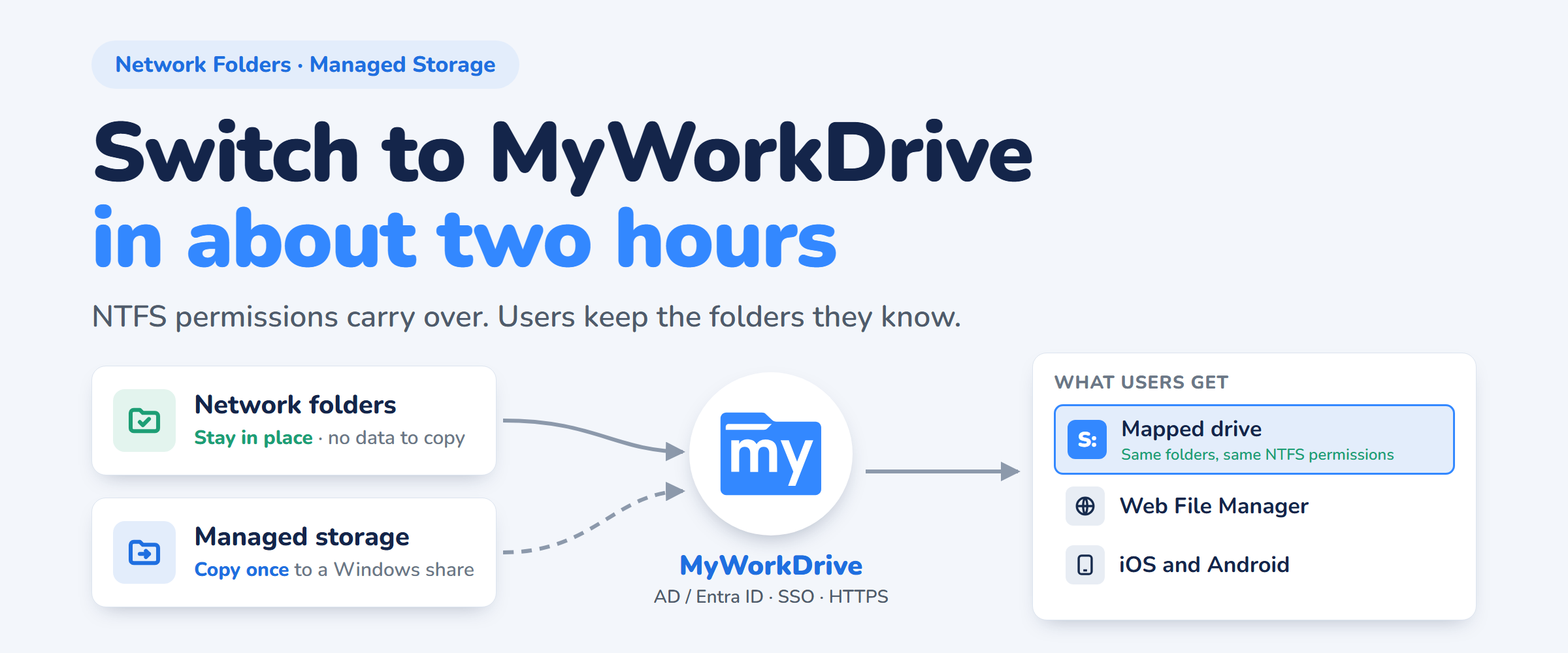
Moving off a sync-and-share platform sounds like a large project, but most of the work depends on one question: where do your files live today? If they already sit on Windows file shares, switching to MyWorkDrive is mostly a server install and a client rollout. If they were moved into the platform's own storage, there is one extra step to bring them back onto a share you control.
This guide walks through both paths, from planning to the day users sign in. If you are still deciding whether to make the move, our FileCloud alternative page compares the two products side by side. This article assumes the decision is made and focuses on how to carry it out.
Before the Switch: Network Folders or Managed Storage
FileCloud Server can serve files in two ways, and many deployments use both:
- Network Folders point at existing SMB shares on your file servers. The files never leave those servers, and NTFS permissions are read from the share.
- Managed Storage holds files in the platform's own storage area, on local disk or in object storage. Access is governed by the platform's own permission model rather than NTFS.
Start by listing every top-level folder users can see today and tagging each one as a network folder or managed storage. For managed storage, also note the total size, who owns each folder, and who has access to it. That list becomes your migration plan: network folders need no data work, and managed storage folders need a destination share and a permission design.
A few things don't carry over from any sync-and-share platform, whichever storage type you use:
- Public and private share links. Links point to the old server, so they stop working once it is retired. Ask owners to list the links that still matter, then recreate them in MyWorkDrive.
- Version history held by the old system. On a Windows share, previous versions come from Volume Shadow Copies or your backup product. If you need the old version history for compliance, keep a read-only archive of the old system for a while.
- Desktop sync and drive clients. Plan to uninstall them as part of the client rollout so users don't end up with two drives pointing at the same data.
Switching From Network Folders: Files Stay Where They Are
For network folders, the files are already on Windows file shares, so there is nothing to copy. MyWorkDrive connects to the same UNC paths and serves them to remote users.
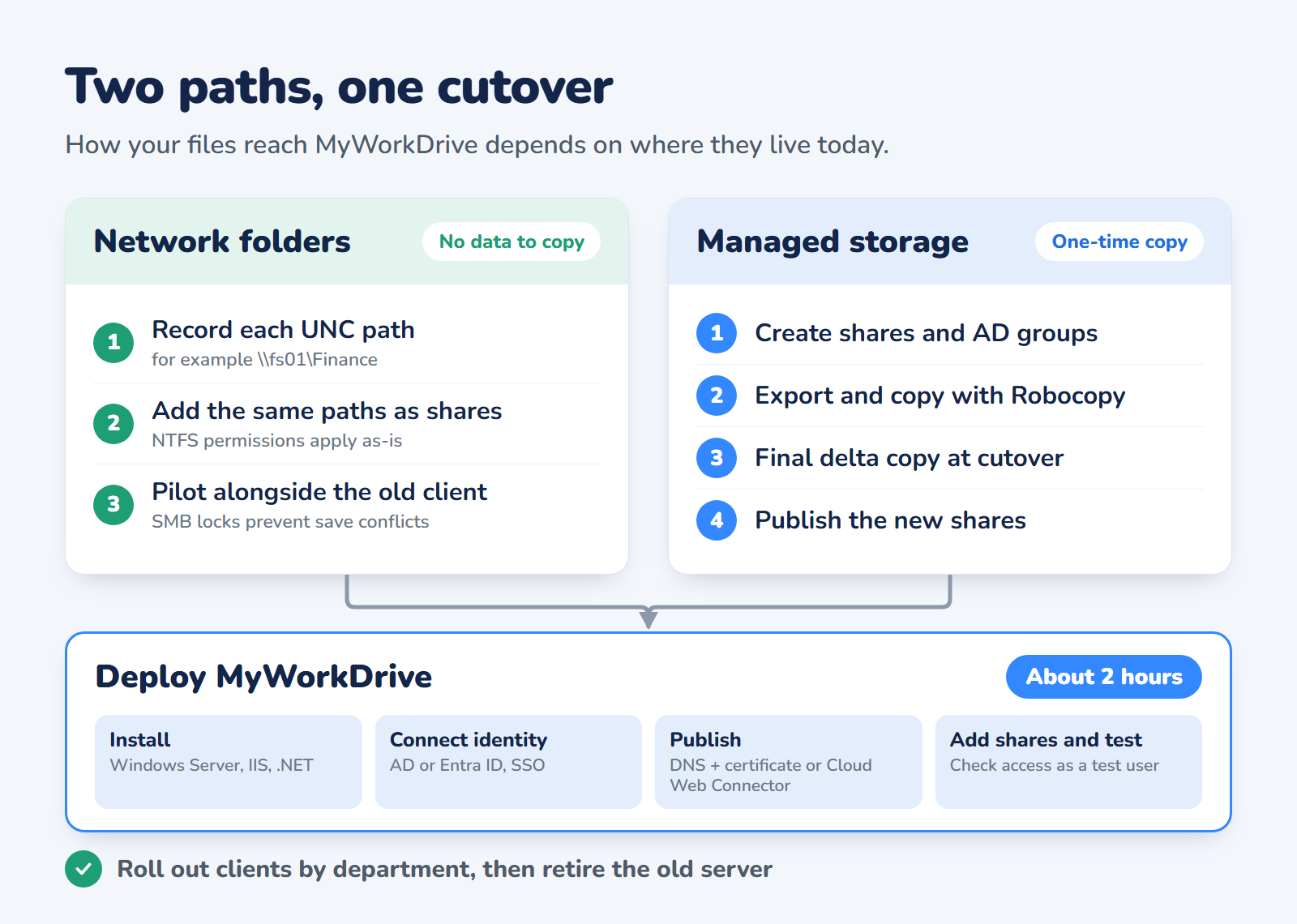
- Record the share paths. Note the UNC path behind each network folder (for example
\\fs01\Finance). - Add the same paths in MyWorkDrive. In the MyWorkDrive admin panel, add each UNC path as a share and choose which Active Directory or Entra ID groups should see it. See the share settings guide for per-share options such as Office editing, sharing and download limits.
- Leave NTFS alone. MyWorkDrive doesn't import or copy permissions. The file server checks NTFS permissions each time a user opens a folder or file, so the access users have in the office is exactly the access they have remotely.
- Run both systems in parallel. Because both systems read the same files, a pilot group can start using MyWorkDrive while everyone else stays on the old client. Native SMB file locking keeps the two access paths from overwriting each other's work.
- Retire the old server. Once all users have moved, uninstall the old clients and shut down the old server and its database.
There is no data cutover, so for most teams the network folder path is the quickest part of the project.
Switching From Managed Storage: Moving Files to a Share You Control
Managed storage files have to move to a location MyWorkDrive can serve: a Windows file share, a DFS namespace, or an Azure Files share. This is a one-time move, and after it your files live in standard storage that any tool can back up, scan and audit.
- Create the destination shares. Mirror the folder structure from your inventory. A common layout is one share per department plus a home folder share for personal files.
- Design permissions with AD groups. Managed storage permissions don't map to NTFS, so build them again using security groups rather than individual users. Our guide to NTFS permissions and ACL management covers the group structure most teams use.
- Export the content. Use the export or download tools the current platform provides to copy each folder's latest versions to a staging location, then copy them to the destination share with Robocopy, which keeps timestamps and can resume after an interruption.
- Run a delta pass at cutover. Pick a cutover window, set the old folders to read-only, run a final copy to pick up recent changes, and check file counts and sizes on both sides.
- Publish the new shares in MyWorkDrive. From here the steps are the same as for network folders.
Moving files out of managed storage takes time, but the result is simpler to run: files sit on a share you already back up and monitor, with permissions anyone on the team can read in Windows Explorer.
Deploying MyWorkDrive in About Two Hours
The MyWorkDrive server runs on Windows with IIS and .NET. It needs no external database and no separate Linux host. A typical deployment takes about two hours, and most of that time goes on prerequisites such as DNS and certificates rather than the install itself.
- Prepare a server. Use a Windows Server joined to your domain, or set up Entra ID mode for cloud identity. Small deployments can run on the file server itself; larger ones usually use a dedicated server. The server setup guide lists sizing and requirements.
- Install and connect identity. Run the installer, then connect to Active Directory, or follow the Entra ID setup guide.
- Publish the server. Either assign a DNS name with an SSL certificate and open HTTPS, or use the Cloud Web Connector, which makes an outbound-only connection and needs no inbound firewall ports.
- Add shares and test. Add the shares from your inventory, sign in as a test user, and confirm that folders and permissions match what that user sees in the office.
Many teams have a pilot group signed in on day one, then move the remaining users department by department.
Permissions, SSO and Audit Logging After the Switch
Permissions. Network folders keep their NTFS permissions unchanged, and managed storage folders get the AD group permissions you designed during the move. Either way, Windows and your directory are the only places permissions are stored. When someone joins or leaves a group, the change applies at their next file request, with no user import or sync job to wait for.
Single sign-on. In Entra ID mode, users sign in with their Microsoft credentials and your Conditional Access and MFA policies apply as they do today. In Active Directory mode, MyWorkDrive supports SAML 2.0 with Entra ID, ADFS, Okta and other identity providers. The SSO setup overview covers each one. Users keep their existing sign-in and MFA prompts.
Audit logging. MyWorkDrive logs sign-ins, file operations (open, download, upload, save, delete), sharing activity and admin changes. Events export over Syslog with the user, source IP, device, share, path, operation and result, so they land in your SIEM next to the rest of your infrastructure logs. See file access audit logging for how this works alongside Windows auditing on the file server.
Before you retire the old server, export any audit history you have to keep under your retention policy. That history stays with the old system.
What Users See After the Switch
For users, the change is mostly a new client and a new sign-in page. Their folders, file names and permissions stay the same.
- Mapped drive on Windows and Mac. The MyWorkDrive desktop clients map a drive letter to the shares, so people work in Explorer or Finder as they do in the office. Files open on demand and aren't synced to the laptop.
- Web File Manager. Any browser gives access to the same shares, with Office editing in the browser for Word, Excel and PowerPoint files.
- Mobile apps. iOS and Android apps give access to the same shares, with the same permissions.
- Sharing. Users create share links from the web, desktop or mobile clients, under the sharing policies you set per share.
A short note to users before cutover covers most questions: the new sign-in address, which client to install, and when the old client stops working. Since the folders look the same, most teams find users need little training.
To plan your switch with our team, book a demo and we'll go through your network folder and managed storage inventory with you.